
How to Sync Travel Keeper Between Your Phone and Laptop
September 22, 2026
Set up sync on the device that already has your trips first. That device creates your 12-word recovery phrase. Then go to your second device, sign in with the same email, and enter those same 12 words.
This is a Travel Keeper Pro feature and you will have to subscribe to Pro to activate it.
Here’s the step by step instructions for setting it up, in case you get stuck.
Why does it ask for a recovery phrase I don’t have?
If you got that, you’re on the wrong screen for where you are in the process.
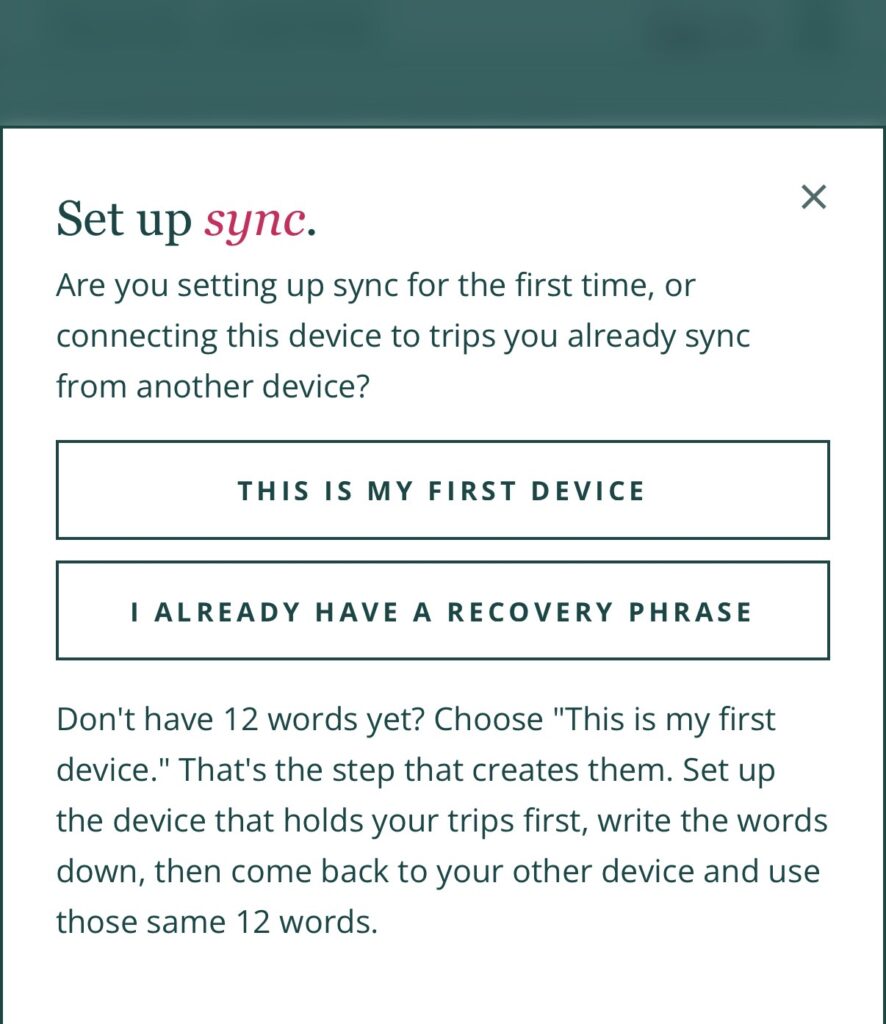
There are two paths: creating your phrase, and entering one you already have. If you don’t have 12 words yet, you’re creating them, not entering them. The “I already have a recovery phrase” option is for your second device, not your first.
So you’ll want to start on the device that has your trips.
Step 1: Set up sync on the device with your trips
For most people that’s your phone.
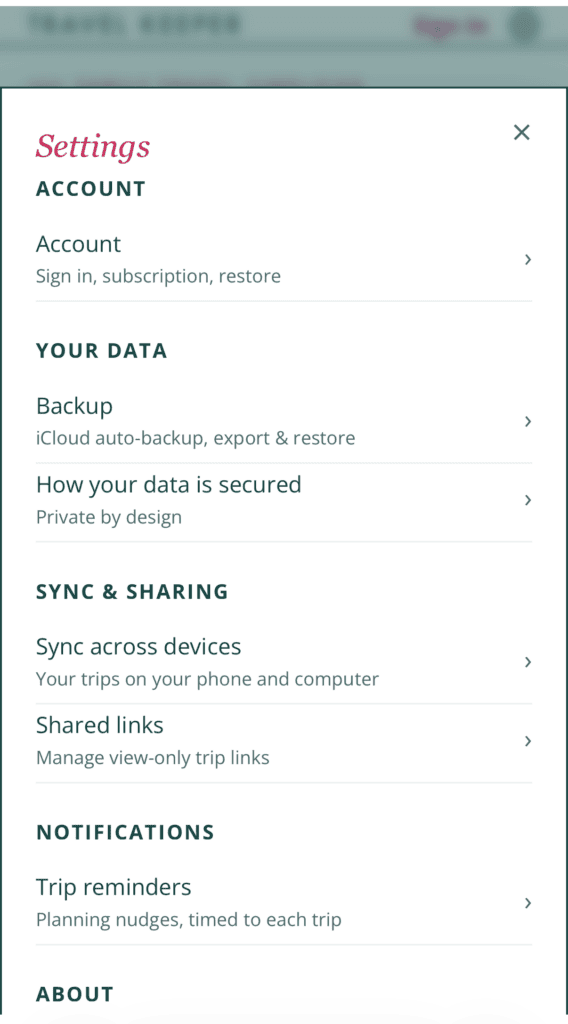
- Tap the gear icon, then Sync across devices, and turn on Sync my trips.
- You’ll get a screen asking if this is your first time. Tap This is my first device. This is the one that creates your 12 words.
- Write the words down somewhere safe before you continue. The app will ask you to tap a few of them back to confirm you saved them.
- That’s it. Sync turns itself on from there.
Those 12 words are the only key to your synced trips. Save them somewhere safe. The app will show you two of them back like “word #4” and asks you to pick the right one from a list. If you pick wrong it just reshuffles and lets you try again.
Step 2: Set up your second device
On your laptop, go to app.gotravelkeeper.com.
- Sign in with your email first. You’ll get a code, no password needed. That’s what brings your Pro subscription over.
- Gear icon, Sync across devices, turn on Sync my trips.
- Because your phone is already syncing, it skips straight to Restore your key and asks for your phrase. Type the same 12 words, in order, and hit Restore. If it asks whether this is your first device instead, choose “I already have a recovery phrase”.
Your trips load onto your laptop, and both devices stay in sync from there.
Can I lock myself out by doing this wrong?
No.
If a word is wrong or out of order, the app tells you the phrase doesn’t check out and nothing happens. You can try as many times as you need.
Setting up your second device only pulls your trips down to it. Nothing gets removed from your trips unless you delete it from either your laptop or phone.
Capital letters and extra spaces don’t matter either. Just the 12 words, in order.
Where do I find my 12 words again?
On your phone, under Settings then Sync across devices.
They’re at the bottom of that page with the button saying “View your recovery phrase.” You can pull them up any time from your phone. They’ll be blurred until you tap Reveal, and they hide themselves again after about 30 seconds, which is on purpose so nobody can read them over your shoulder.
What happens when I delete a trip on one device?
It goes away on the other one too.
Once both devices are connected, they mirror each other. If you delete something from your laptop, it will also delete it from your phone. Give it up to a minute if both are open, or it will catch up the next time you open the app on the other device.
Why does Travel Keeper use a recovery phrase at all?
Since your trips are encrypted on your device before they ever leave it, those 12 words are the key to unlocking them.
That means nobody else can read your trips, including me. It also means I can’t recover your phrase for you if you lose it. That’s the tradeoff for keeping your trip data private.
If you never turn sync on, none of this applies. Your trips just stay on your phone, which is how the app works by default.
Do I need Pro to sync?
Yes. Sync across devices is a Pro feature, along with planning together with your partner, screenshot import, calendar view, spending breakdowns, custom packing templates, and PDF export.
Everything you have on the free version stays free.
Still stuck? Reply to any of my emails or send me a DM on Instagram. I read every one, and if something in the app is confusing, I’d rather hear it and fix it.


